
Cursor
Using Cursor with Fast-Token
Cursor lets you use your own API key so you can spend purchased quota (for example DeepSeek or a relay service) instead of being limited by Cursor’s official subscription usage caps.
Step 1: Enable API mode
- Open Cursor.
- Open settings:
- Click the gear icon (Cursor Settings) in the top-right corner.
- Or use
Ctrl + Shift + J(Windows/Linux) orCmd + Shift + J(macOS).
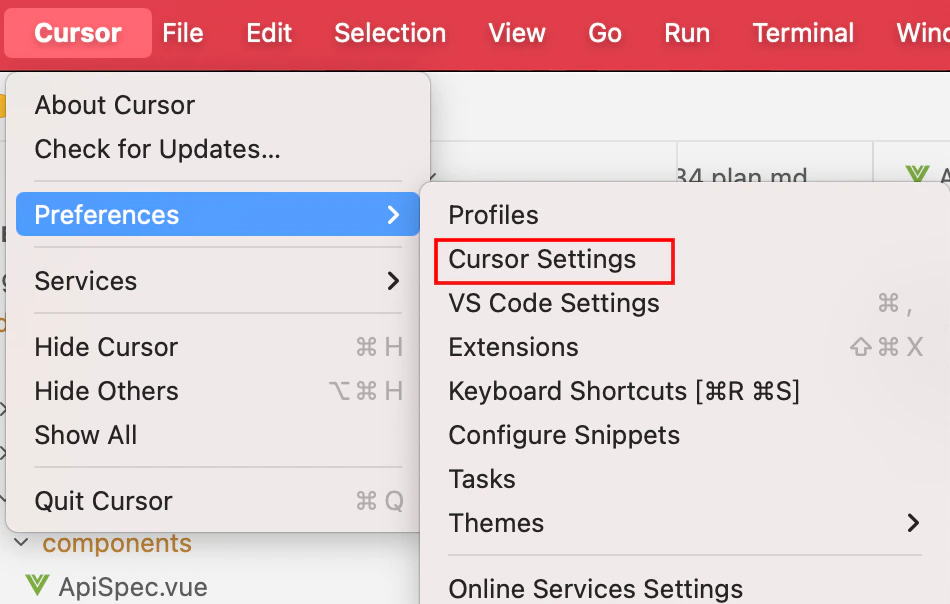
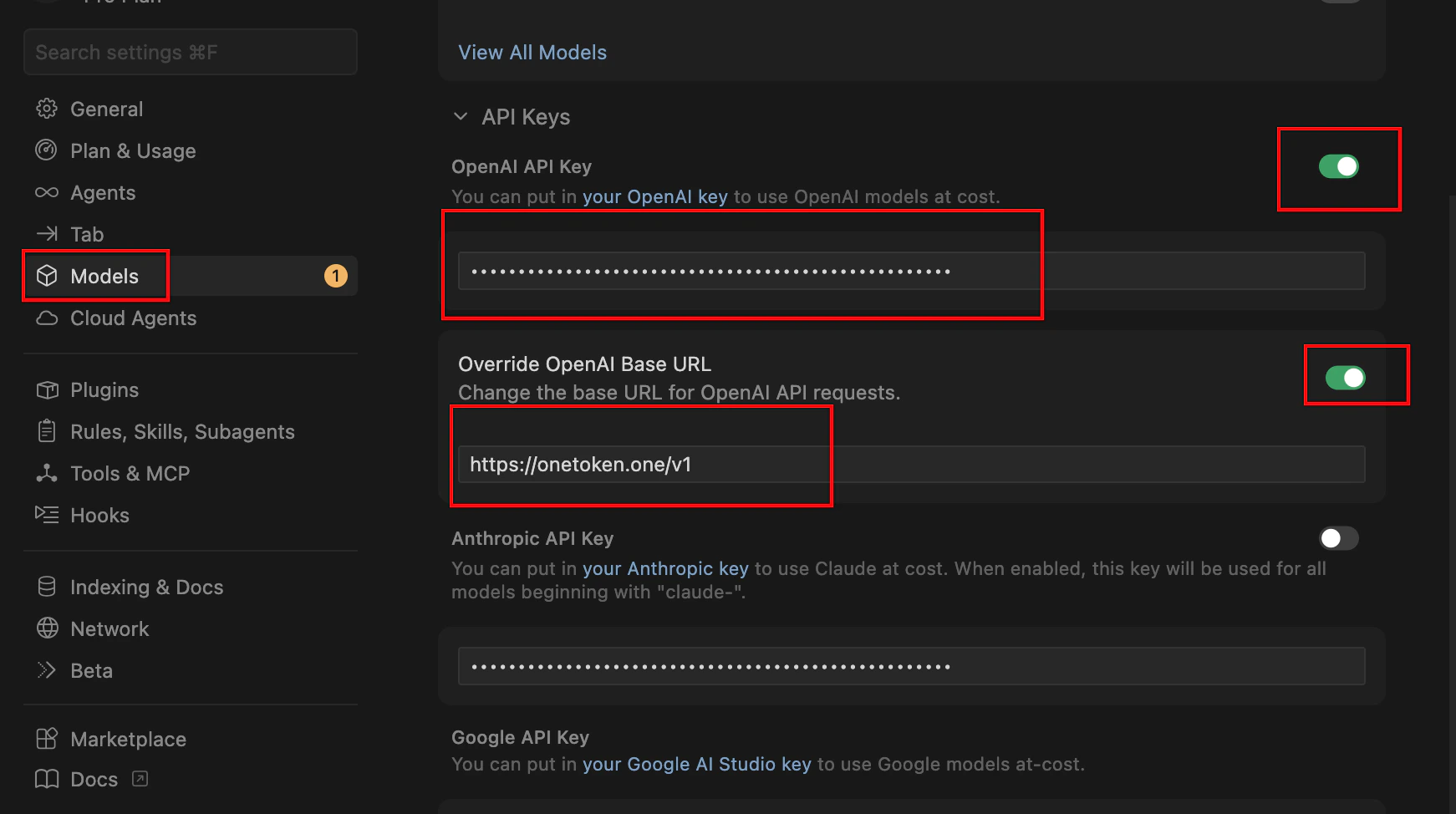
- In the sidebar or window that opens, select the General or Models tab.
- Find OpenAI API Key and paste an API key from the Fast-Token platform.
- Turn on Override OpenAI Base URL and set it to
https://fast-token.com/v1.
Step 2: Manage the model list (Models)
To make sure Cursor calls the right models, enable or add them manually in settings. Custom model IDs must not match Cursor’s built-in model names. Choose models from the Cursor category in the model list.
- On the same settings page, find the Models section.
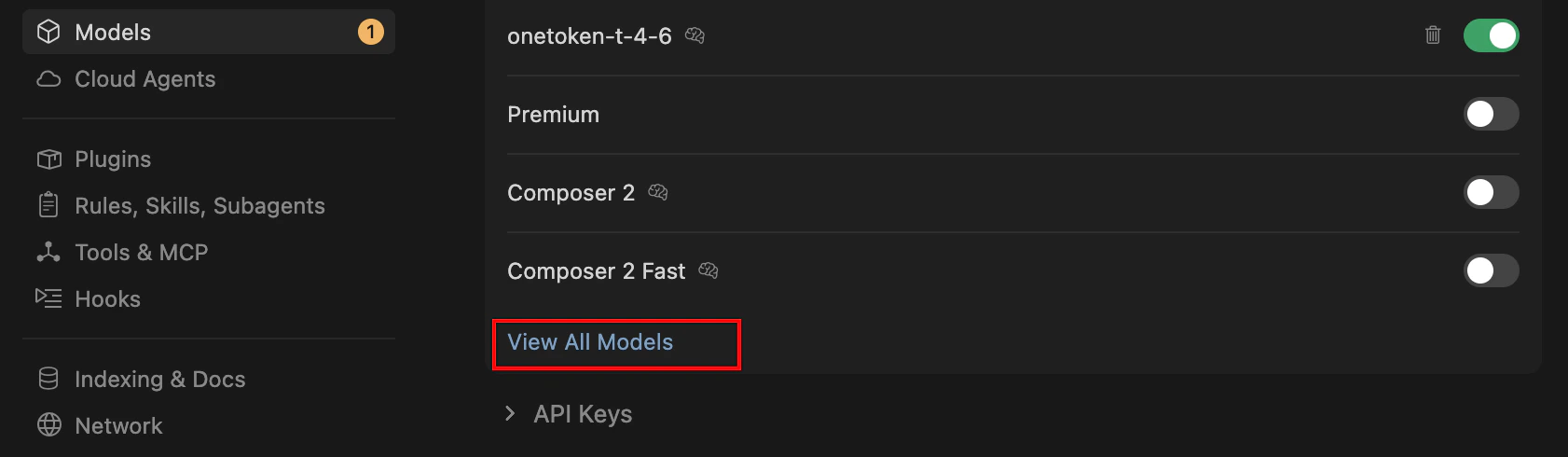
Turn on the switch for the models you want (for example
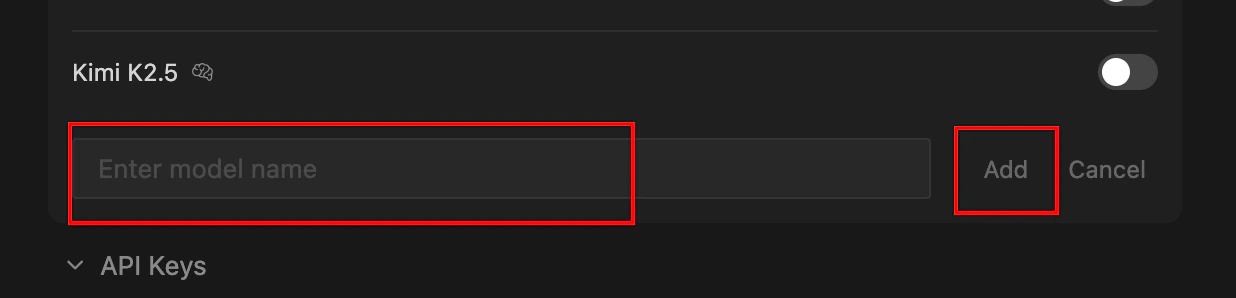
gpt-4o,claude-3-5-sonnet).Add a custom model: for DeepSeek and similar providers, click + Add Model.
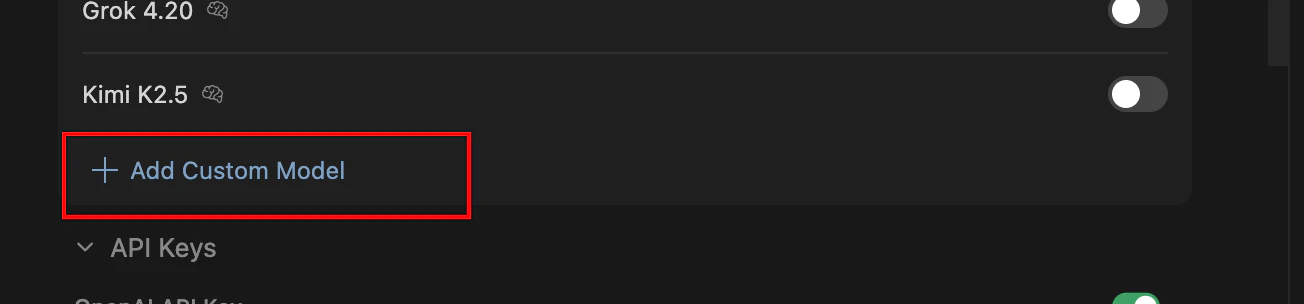
- Enter the exact model ID (for example
deepseek-chatordeepseek-reasoner).
Step 3: Use in the editor
- Return to the editor.
- Use
Ctrl + L(Chat) orCtrl + K(Edit). - In the model dropdown at the bottom of the input area, select the third-party model you configured.
- Note: When using your own API key, some advanced Cursor features (such as certain Composer optimizations) may behave differently; code generation quality depends on the API you choose.
FAQ
| Symptom | Fix |
|---|---|
| Verify Failed | Make sure the Base URL does not include /chat/completions — use only https://fast-token.com/v1. |
| Model does not respond | Check that your Fast-Token account has sufficient balance. |
| Cannot use built-in models | After enabling your own API key, Cursor usually spends your key quota before your subscription quota. |